How to export your data
Export you topics contents from Rizzoma.
- Export topics contents
Text with structure, replies, formatting, links, etc. Also saves @mentions, []~tasks, information who edited each replay (name, link to avatar, and email when available to you)
- If you have less than 100 topics in total
Just use standard "Export multiple topics" functionality:
- use empty search string to show all topics that you follow (WARNING: maximum 100 topics will be shown)
- click the "Gear" icon (top right corner) > Export multiple topics > select all > click Export selected topics.
- wait few minutes,
- link to .zip archive with topic contents (in HTML format) will appear in the same popup window
- if you closed it then you can open it again later (click the "Gear" icon (top right corner) > Export multiple topics)
Note: .zip archive will be stored for approximately 7 days. - If you have more than 100 topics (option A)
Use different searches (by words, by #tags).Export topics for each search result usion the option "1. If you have less than 100 topics in total"
- If you have more than 100 topics (option B)
This option requires some programming or scripting, and manual work from the Rizzoma team.a dn.The idea is:
- you request list of topic IDs that is available for your user (please write from you email address),
- we generate the list (unfortunately, we have to do it manually),
- you make some simple shell script or program in almost any programming language.
- This script or program calls the Export API for each topic ID,
- then saves HTML to you disk.
To call the Export API:- login to Rizzoma in you browser (Chrome, etc.)
- get you session cookie value:
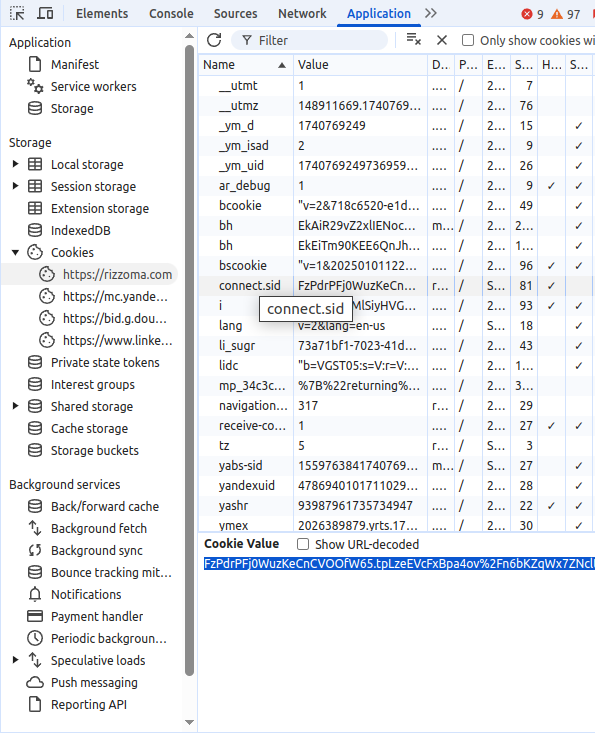
Screenshot of the Chrome DevTools:
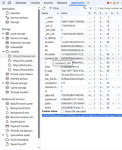
- while on the Rizzoma website, open the Chrome DevTools (https://developer.chrome.com/docs/devtools/open) or similar Developer Tools if you use different browser
- choose the "Application" tab (it may be hidden under the ">>" button)
- choose the "Storage > Cookies > https://rizzoma.com" on the left sidebar
- in the table find the "connect.sid" cookie
- copy it's value
- for each Topic ID call the Export API, using your "connect.sid" cookie value to authenticate, store result to a file with the ".html" extension
- examples:
- With the curl command:
curl https://rizzoma.com/api/export/1/THE_TOPIC_ID/html/ -H 'Cookie: connect.sid=YOUR_CONNECT.SID_COOKIE_VALUE' > filename.htmlFor example:curl https://rizzoma.com/api/export/1/42249189a470164c0f1faa7b490b857c/html/ -H 'Cookie: connect.sid=FzPdrPFj0WuzKeCnCVOOfW65.tpLzeEVcFxBpa4ov%2FrPFj0Wu' > 42249189a470164c0f1faa7b490b857c.html
- With the wget command
wget --header="Cookie: connect.sid=FzPdrPFj0WuzKeCnCVOOfW65.tpLzeEVcFxBpa4ov%2FrPFj0Wu" -O 42249189a470164c0f1faa7b490b857c.html https://rizzoma.com/api/export/1/42249189a470164c0f1faa7b490b857c/html/
- With the Python script:
Here is a simple Python script to perform the same operation using the requests library:
- Install requests (if not already installed): pip install requests
- download the file "export_topics.py",
- open it with your text editor, write the list of TOPIC_IDS into it. Also you may modify the code to read the list from some another file.
- make sure to replace the COOKIE_SID value with the actual value you have.
- run the python file python3 export_topics.py
Code of the file:
Notes:- The Topic ID is a part of URL that you use to open the topic.
For example, for current topic https://rizzoma.com/topic/42249189a470164c0f1faa7b490b857c/0_b_cj5m_clgqs/the Topic ID will be the "42249189a470164c0f1faa7b490b857c" string.
- File attachments (uploaded files and images) will not be exported.
- They will still point to the Rizzoma servers in the exported .html file.
- Read below.
- Images that are inserted directly from other sites (via the Insert URL of picture on other site: function) will still point to that other site. There usually no need to download them.
- Gadgets data will not be exported, only the Gadget URL will be.
- Read below.
- Avatars of persons who created/edited replies in the topic will not be exported. They will point to avatar files on Google, Facebook or Rizzoma servers, depending on the avatar owner settings.
- If you have less than 100 topics in total
- Export file attachments (uploaded images, uploaded files)
The "Upload picture from your computer:" and "Upload file from your computer:" functionality.Such files (images, their preview thumbnails, files) will still point to Rizzoma servers.You need to parse their URLs from the exported HTML and download them yourselves.All such URLs will start from: https://rizzoma.com/r/files/Only <a> and <img> tags in the exported HTML file can contain such links.Examples:<a class="export-file" href="https://rizzoma.com/r/files/214946d2342dba39409d6cf70e9d29a8-1173ca60ad720e6a5e1c4b2cbad21a7e-0-0.8253310453670577"><img src="https://rizzoma.com/r/files/thumbnail/214946d2342dba39409d6cf70e9d29a8-1173ca60ad720e6a5e1c4b2cbad21a7e-0-0.8253310453670577" title="World_Time_Zones_Map.png"></a><a class="export-file" href="https://rizzoma.com/r/files/214946d2342dba39409d6cf70e9d29a8-1173ca60ad720e6a5e1c4b2cbad21a7e-3-0.24300116621941625">hello123.txt</a>Example scripts/programs:
- Store HTML and attachment files with the Python script
Here is a simple Python script to perform the export of topics and attachments using the requests library:
- Install requests and BeautifulSoup (if not already installed): pip install requests beautifulsoup4
- download the file "export_topics_with_attachments.py",
- open it with your text editor, write the list of TOPIC_IDS into it. Also you may modify the code to read the list from some another file.
- make sure to replace the COOKIE_SID value with the actual value you have.
- run the python file python3 export_topics_with_attachments.py
Code of the file:
- Store HTML and attachment files with the Python script
- Gadgets data
Only Gadgets URL (i.e. <div class="export-gadget"><a href="http://rizzoma.com/gadgets-xml/latex.xml">http://rizzoma.com/gadgets-xml/latex.xml</a></div>) will be stored in the exported HTML file.The DATA of the Gadget WILL NOT be STORED in the exported file.Currently there is no way to store it, unless copying Gadget data or configuration manually from each topic.
@Ilia NazarovIs there any way I can contact you regarding this issue, perhaps to place an order?